Prepare the content before choosing a design
Imagine someone arriving from search who has never heard of your business. They need to know what you do, whether it suits them, where you work and how to contact you. Write those answers first; the template should make them easy to find.
Scroll sideways to compare all columns.
You can combine the essential information into sections of one page. Multiple pages and images can be tried in a private draft; richer new Starter and Essential subscriptions are temporarily paused. Eligible image-free Free pages can publish now.
Pick a template your plan can publish
Preview the design and the pages it contains. Free templates suit focused image-free pages. Pro designs can be evaluated in private drafts; new Starter and Essential subscriptions are temporarily paused. Pro is a template and tool badge, not another subscription tier.
Trying a Pro template privately does not make it publishable on Free. Use the Sites plan comparison before spending time on a layout that depends on pages, images or forms your chosen plan does not include.
Replace the example content and check the layout
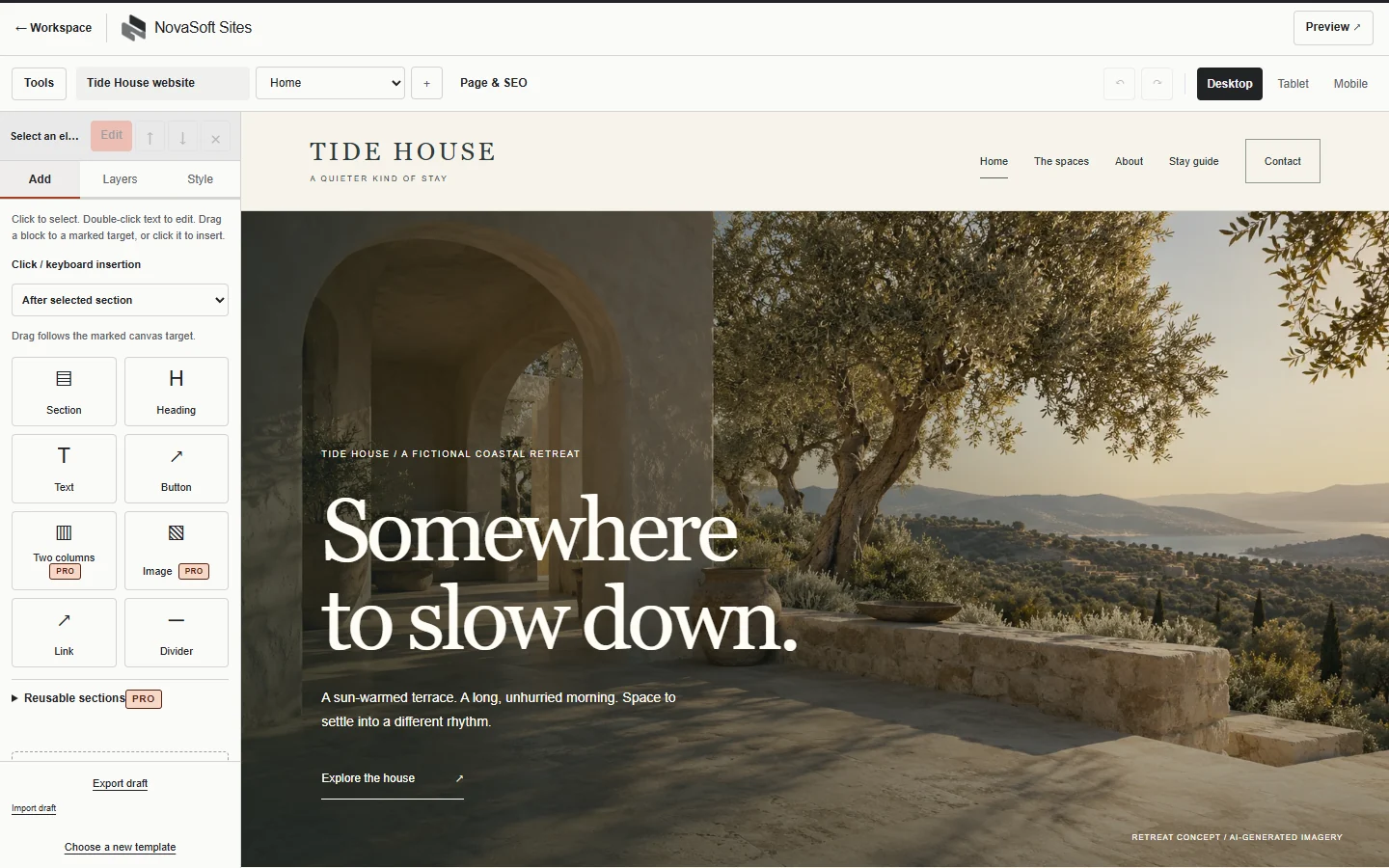
Work in the visual editor on a computer. Replace sample names and text, then adjust typography, colours, spacing and sections to fit your business. Duplicate a useful section when it saves work, and use site defaults to keep repeated elements consistent.
With a plan that supports images, upload your own PNG, JPEG or WebP files. Check the image fit and focus in its actual section. Write a description that explains what the image shows; a file name such as “photo-final-2” tells a visitor very little.
For example, a repair business might use “Workshop technician checking a bicycle wheel” for a relevant work photo. Use real descriptions and evidence. Stock imagery should not be presented as a photograph of a job you completed.
Set page names, addresses and search details
Use a page name that describes its purpose. Keep the URL slug readable, and write a search title and description that match the page. A service page should explain the service, rather than repeating the same company introduction on every page.
An illustrative title is “Bicycle repairs in your service area | Business name”. Replace the example with the actual service and location. Make sure the visible content supports it. These details help describe the page; they do not guarantee rankings.
Check the draft before publishing
- Preview desktop, tablet and mobile layouts; check line breaks, navigation and image crops.
- Remove template placeholders and check spelling, service details and contact information.
- Open the links and test the enquiry route available in your plan.
- Check each page’s title, description and URL slug.
- Export a draft backup, and confirm the finished website meets its plan requirements.
- After publishing, check the live address and contact route again.
Guest drafts autosave in the browser on that device. Keep a draft export as a separate backup; browser storage does not automatically sync your work across devices. Publishing releases a version of the site. Further draft edits are separate until you publish an update, and the version workflow can restore an earlier release.
Decide who will maintain the website
Name the person who will change opening hours, service details, images and contact information. Keep the draft and backup organised so a future update does not depend on one browser session.
If the content, design or migration is more work than you want to take on, compare a website builder with professional website design. NovaSoft can quote a new site, redesign or migration separately from website plan and domain costs.
Related guides
Continue with the next decision