Capture what is on your mind
Add the tasks you already need to complete and place each in the relevant Tab. Write an action you can recognise later, such as “Book the car service”, instead of a broad heading such as “Car”.

LifeTabs workflow guide
Learn how to set up Tabs, plan the week and find saved notes.
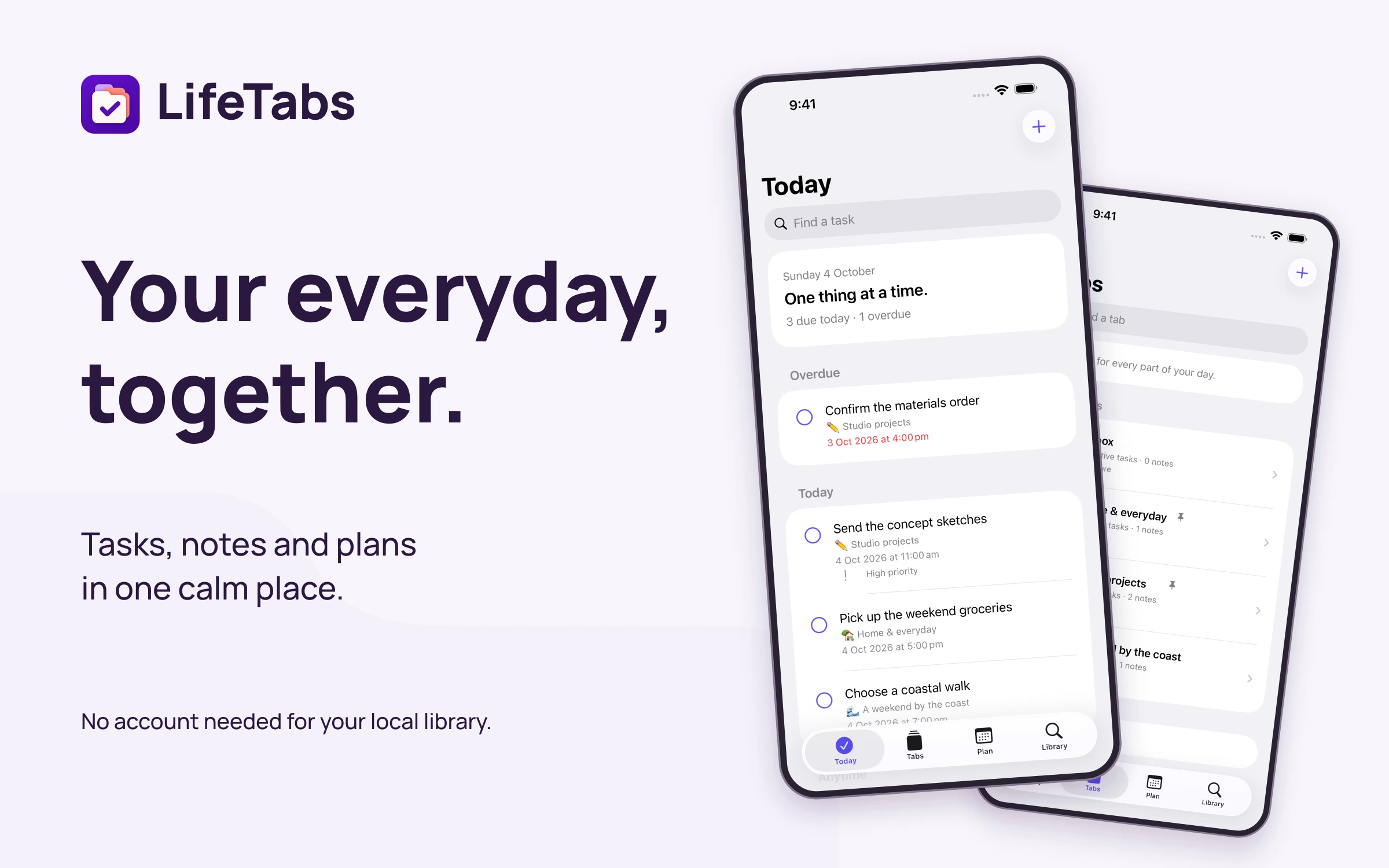
Begin with the parts of life you already need to organise. Home, Work and one current personal project are enough for a first setup. A Tab should help you decide where a task or note belongs; creating a separate Tab for every tiny activity can make that decision harder.
LifeTabs brings tasks, notes and plans together and does not require a login. Check the official App Store listing for the available version and supported devices. This guide uses the refreshed Today, Tabs, Plan and Notes workflow shown on the product page.
Add the tasks you already need to complete and place each in the relevant Tab. Write an action you can recognise later, such as “Book the car service”, instead of a broad heading such as “Car”.
Put the information you will need beside the project or area it belongs to. A booking reference, a short meeting note or a list of materials should support a task rather than becoming another task to complete.
Review what is coming and give the week a realistic shape. Distinguish work that must happen on a particular day from work you would simply like to fit in. Leave space for commitments already in your calendar.
Check Today before adding more work. Choose a manageable set of actions, then update your plan as circumstances change. Move unfinished work deliberately instead of allowing an unrealistic list to grow.
For a home repair, put the action “Confirm the electrician’s visit” in your Home Tab and keep the appointment details in a note. For a work presentation, keep preparation tasks and the outline in the work area. The useful connection is between the action and the information needed to complete it.
Use the library to search for saved tasks, Tabs and files when you need to return to a detail. Consistent names help: a note called “Kitchen repair appointment” will be easier to recognise than “Things to remember”.
At the end of the week, review the existing plan before making a new one. Keep what remains useful and remove work you no longer intend to do. A shorter accurate plan is easier to trust than a long list of old intentions.
Optional Calendar, Health and weather features depend on supported devices, services and permissions. Begin with the core tasks and notes workflow, then enable only the connections that help your routine. Review the app’s current permission information when you enable them.
Use Tabs for related areas or projects and Today and Plan for timing. This keeps the subject of the work separate from when you intend to do it.
No. Account requirements and transfer or backup behaviour are different questions. Check the current app’s storage, export and device-transfer options before changing phones.
Keep exploring
Product support
Tell us the product and version, and what you’re trying to do.